How to Install Divi Child Theme – Step by Step
Learn how to easily install and activate the Divi Child Theme step by step import guide
Step 1 – Requirements
-Divi Theme
-Fresh Installation of WordPress (Recommended)
Server Requirements
-upload_max_filesize (512M or more)
-max_input_time (300 or more)
-memory_limit (512M or more)
-max_execution_time (1000 or more)
-post_max_size (512M)
How To Install Child Theme ?
Note:
The installation video demonstrates the process using a different theme. This is for reference only. The same installation steps apply to all of our themes. Please follow the full video to install any theme from our collection.
Step 2 – Installing Divi Child Theme
After completing the purchase, download the child theme file to your computer. The zipped folder ends with “.zip” at the end of the filename.
Please follow the below steps:
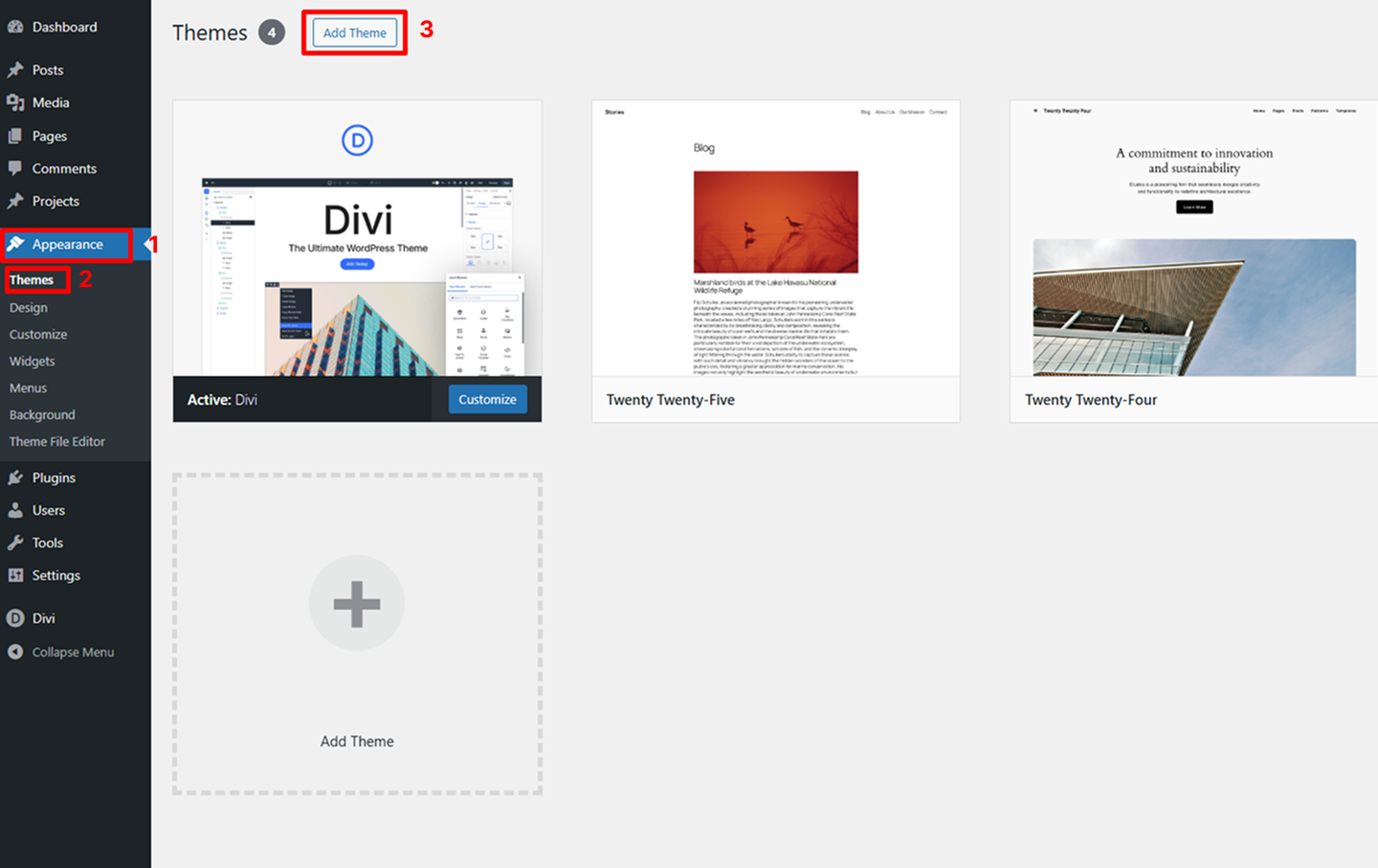
Go to Appearance > Themes > Add New
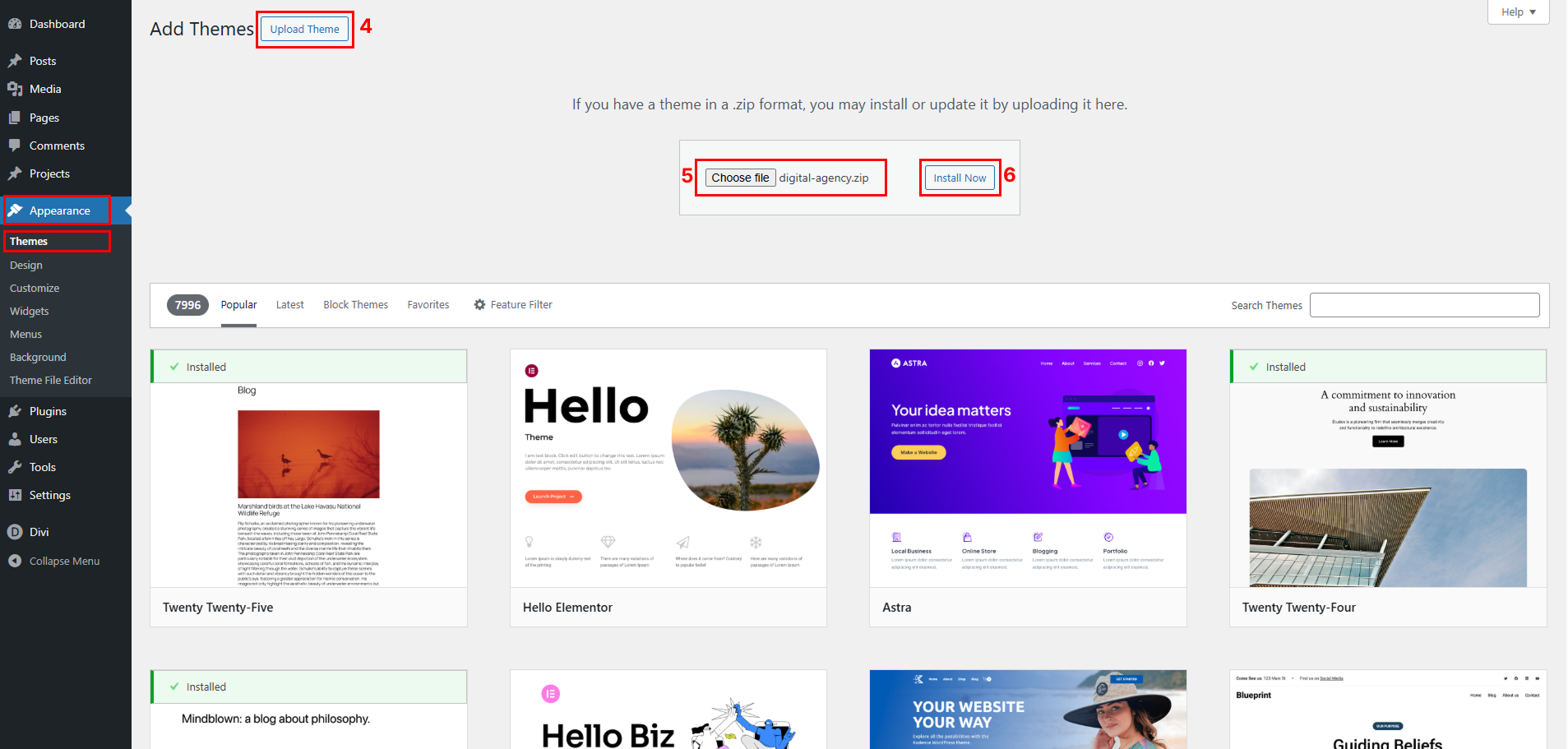
Upload “your-theme.zip” file and click on “Install Now” button.
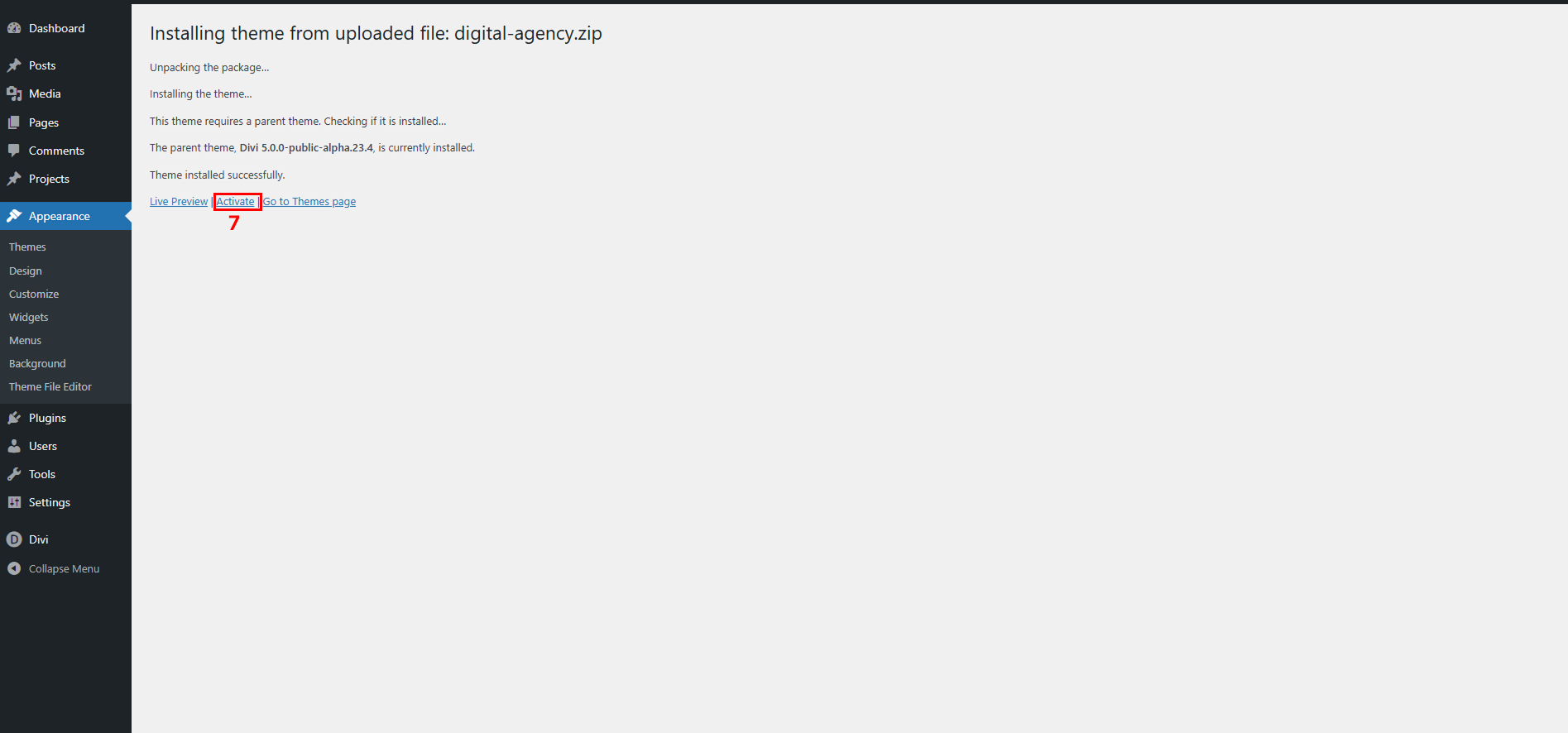
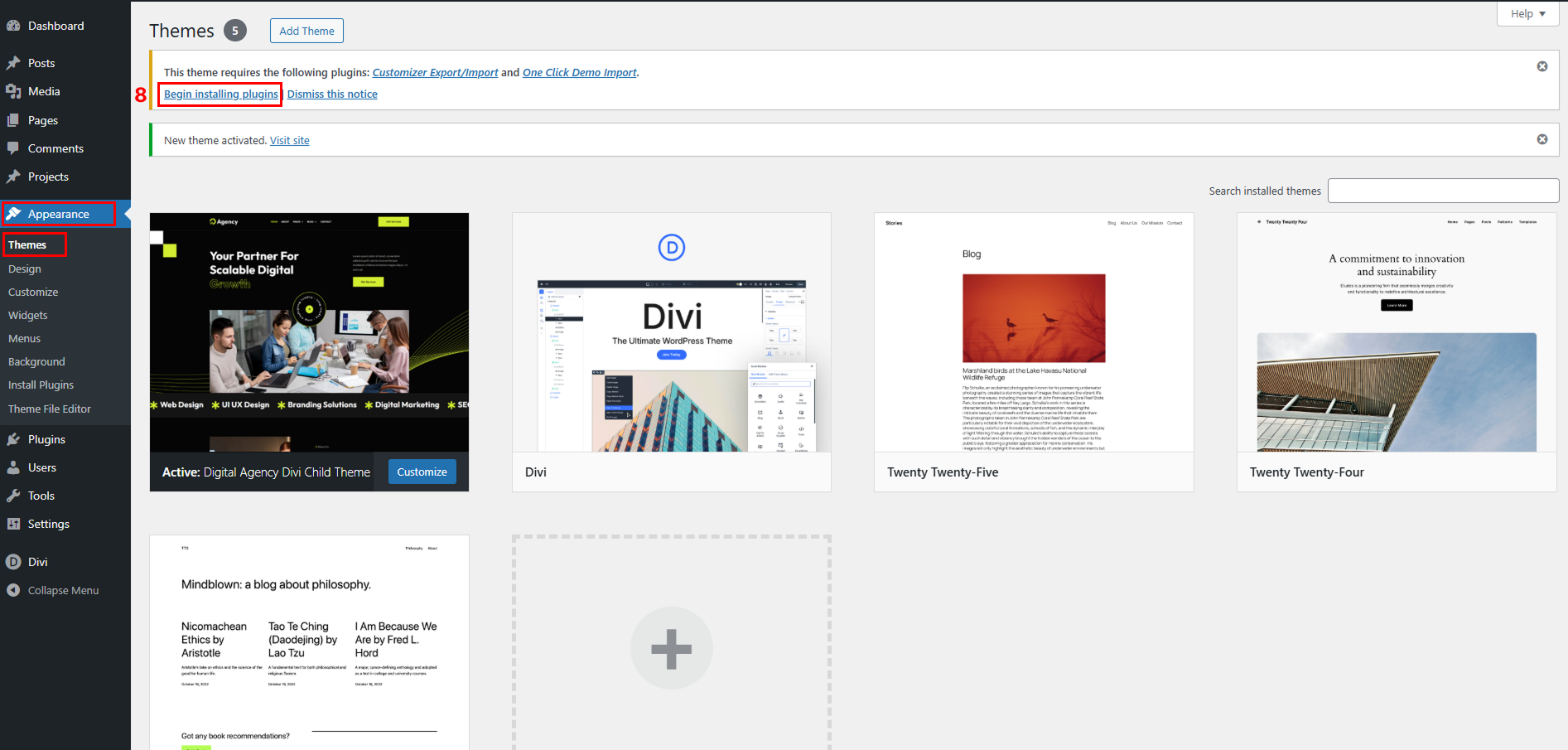
Activate a theme.
Please click Begin Installing Plugins link
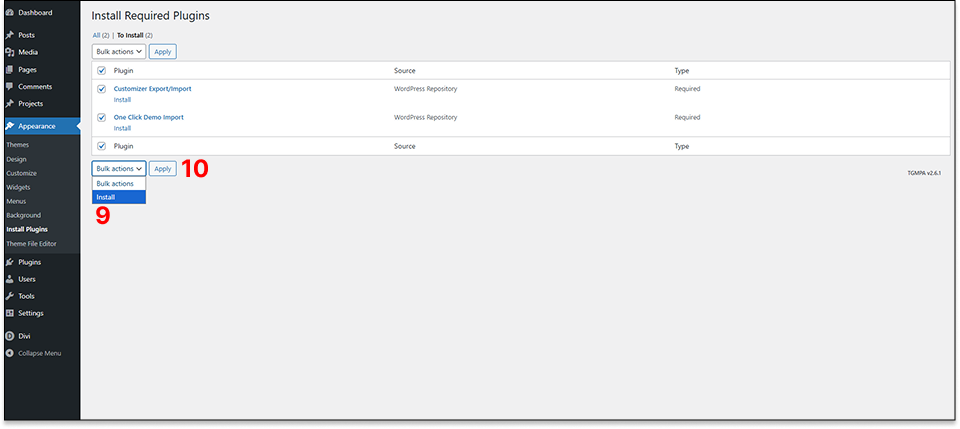
Please check all the plugins and select the “Install” option from the dropdown and click on the “Apply” button.
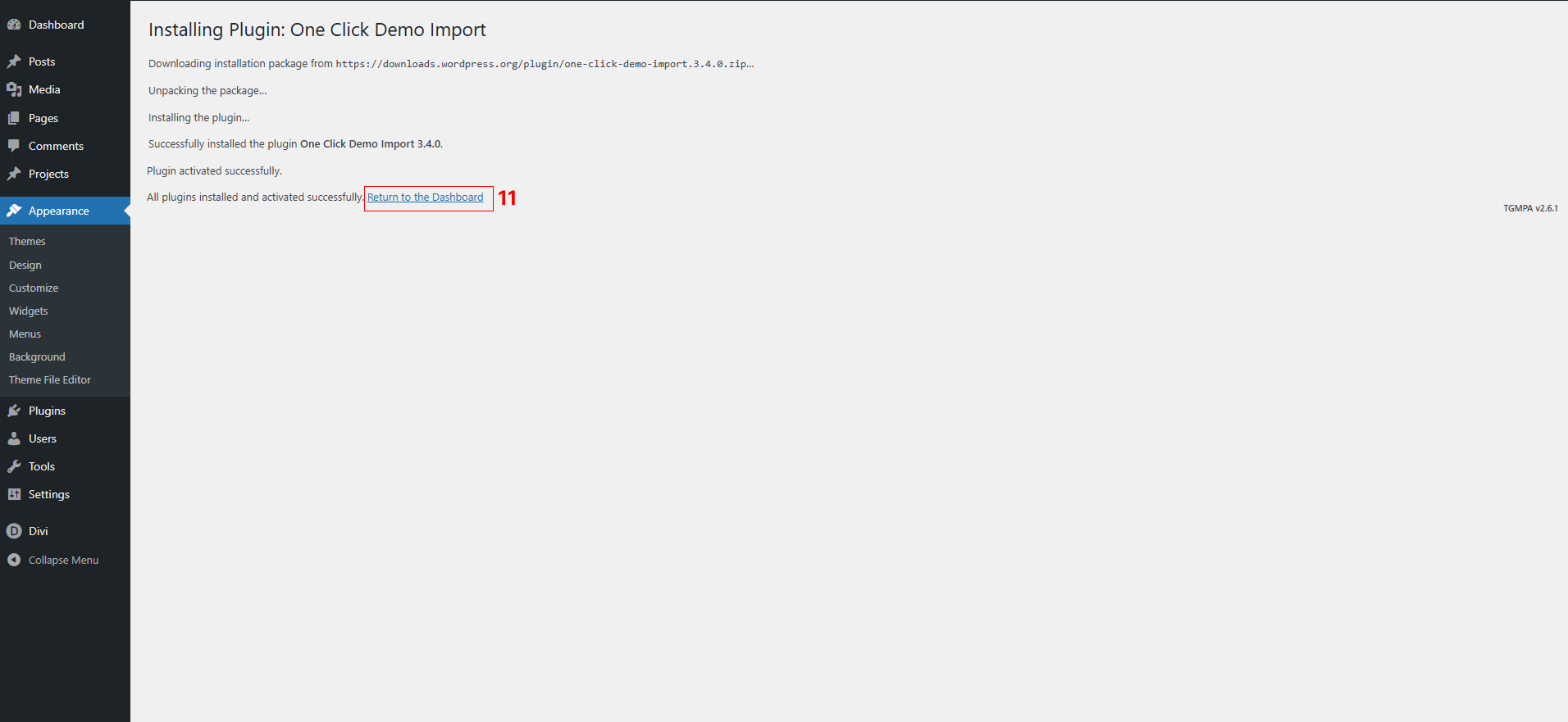
Click the “Return to the Dashboard”
Step 3 – Demo Import
Go to Appearance > Import Demo Data from the WordPress Dashboard.
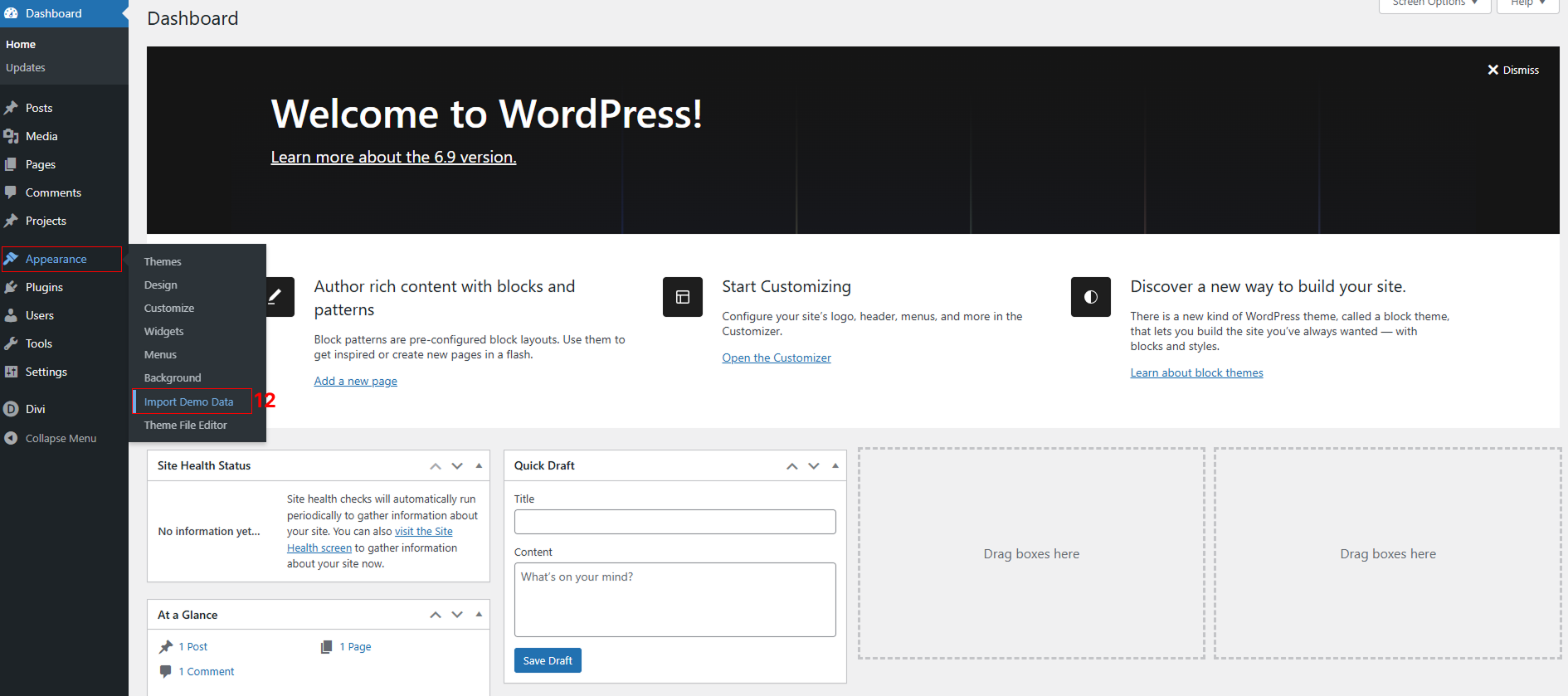
Click on “Import Demo Data” to import demo data.

Click on “Continue & Import” button.
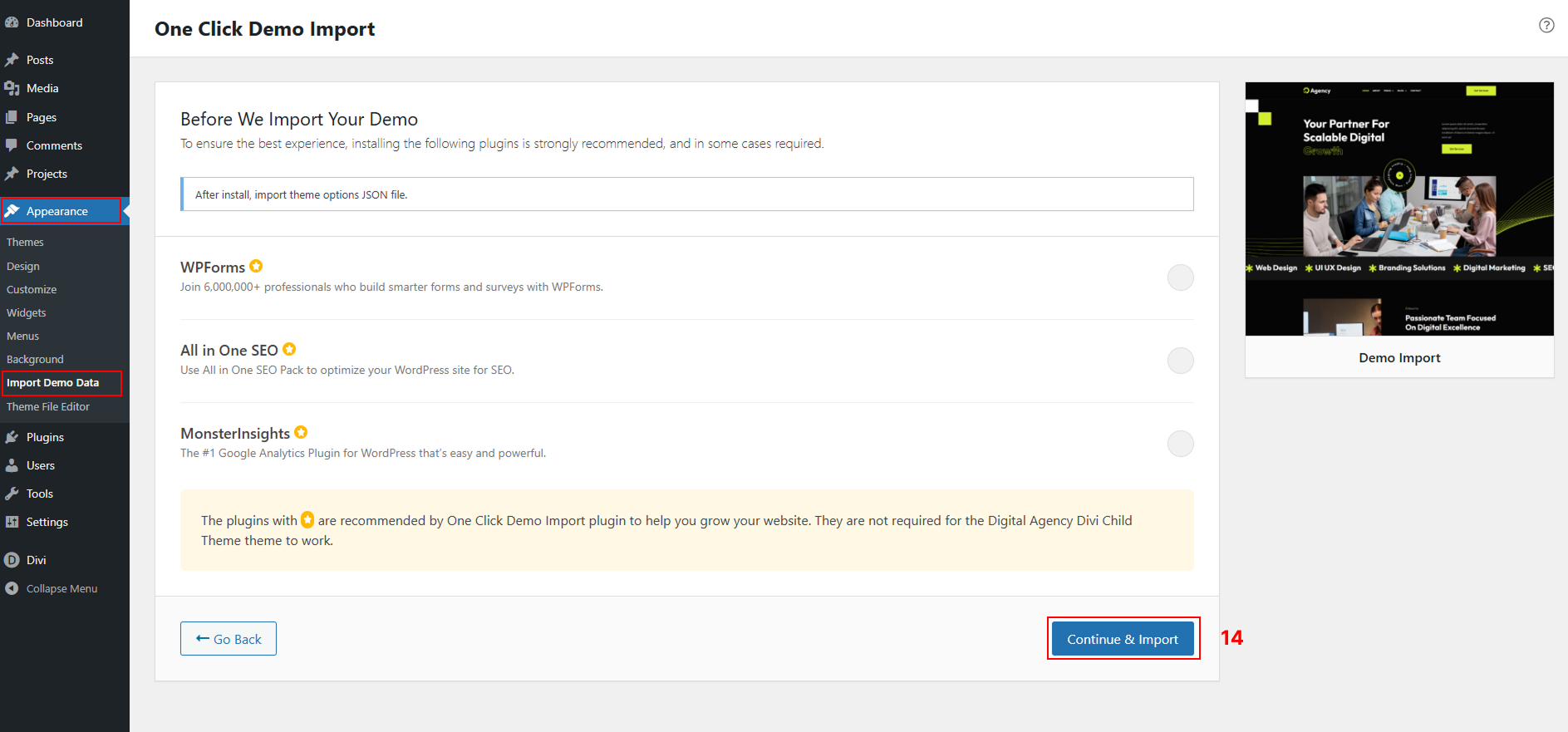
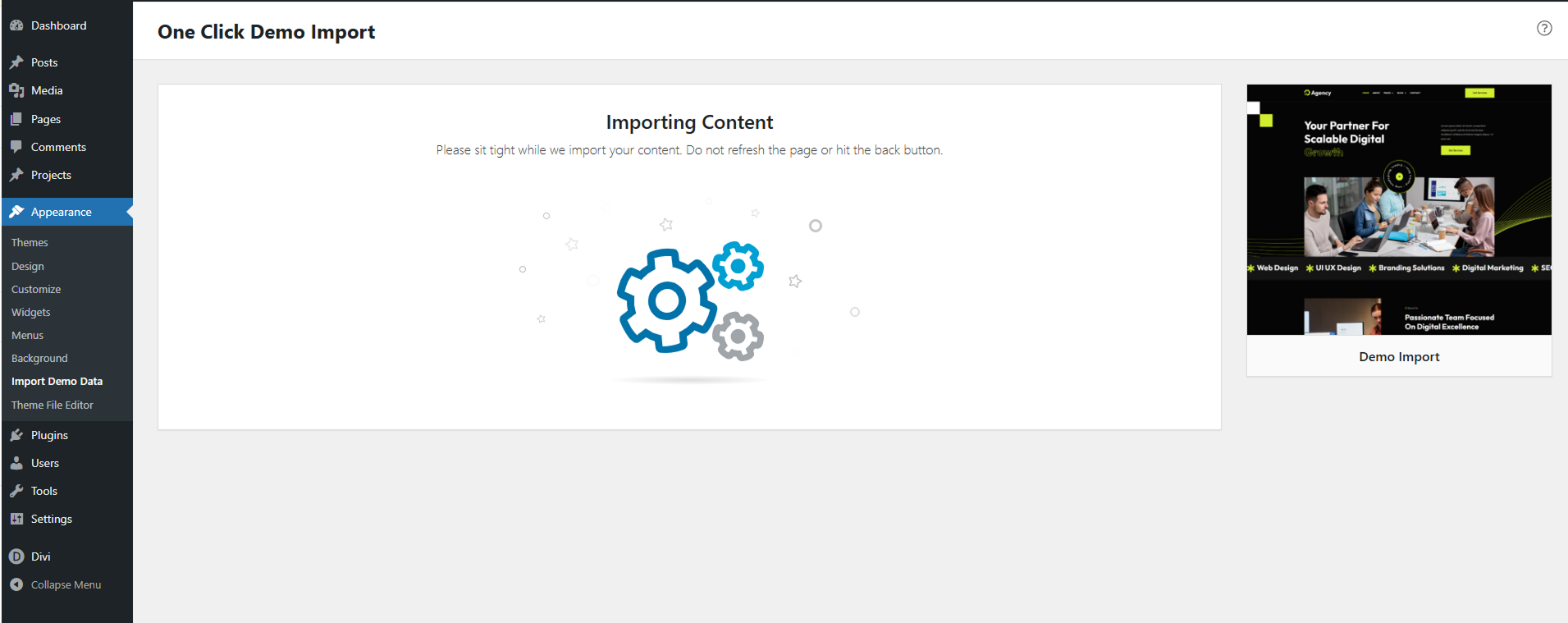
Please avoid using the back button or refreshing the page while importing content.
Wait a moment, please.
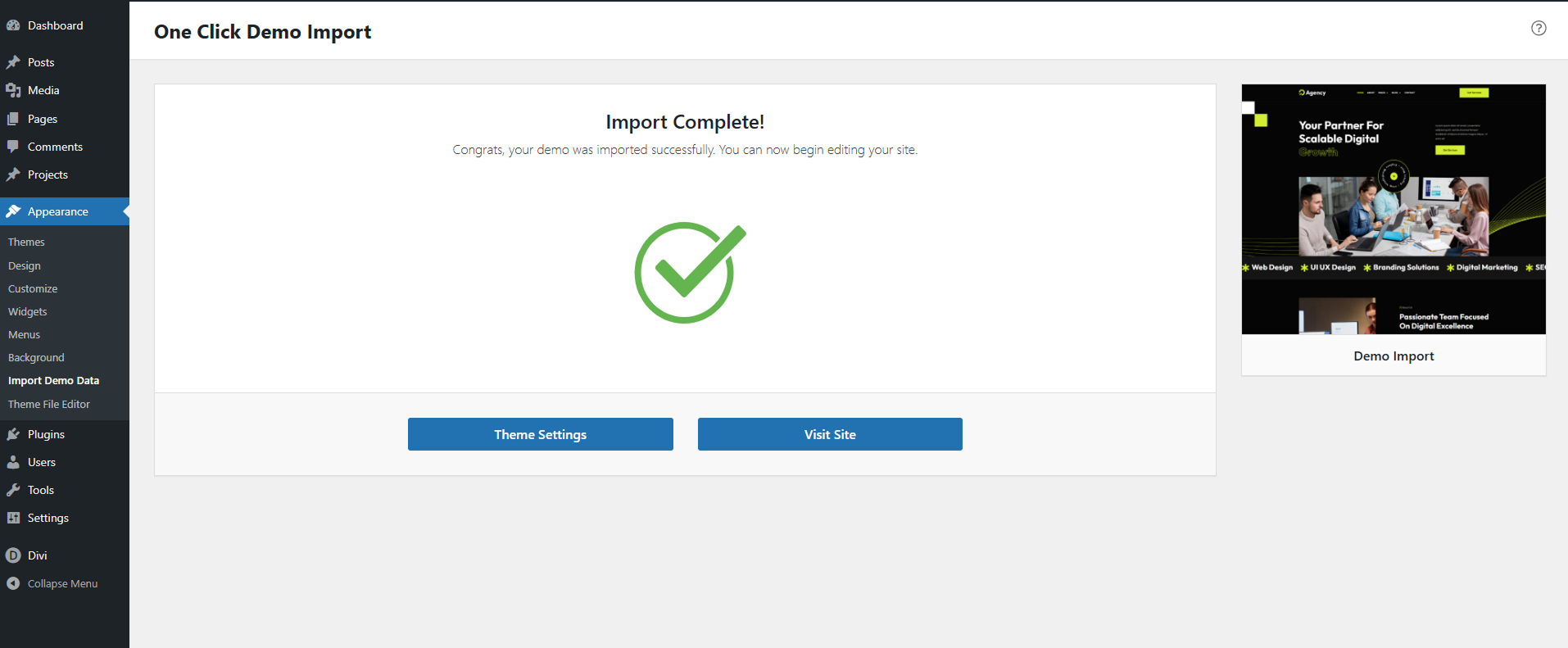
Demo content imported successfully. Enjoy
Step 4 – Import Theme Options
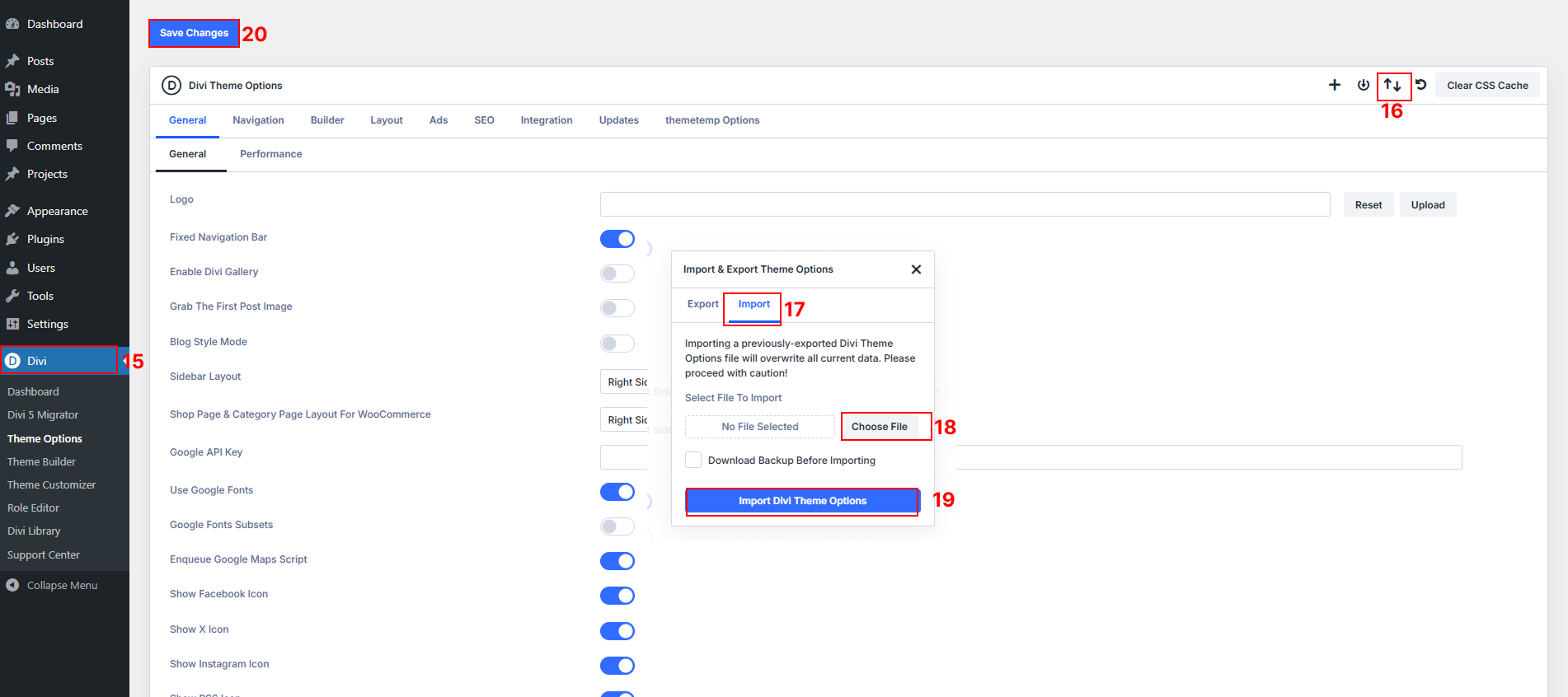
Import File (Locate divi_theme_options.json in Product Zip File > Unzip the Product File > imports > divi_theme_options.json)
– Divi > Theme Options.
– Click the Import/Export icon (up/down arrows at top right).
– Click Import, select the divi_theme_options.json file, and click Import Divi Theme Options.
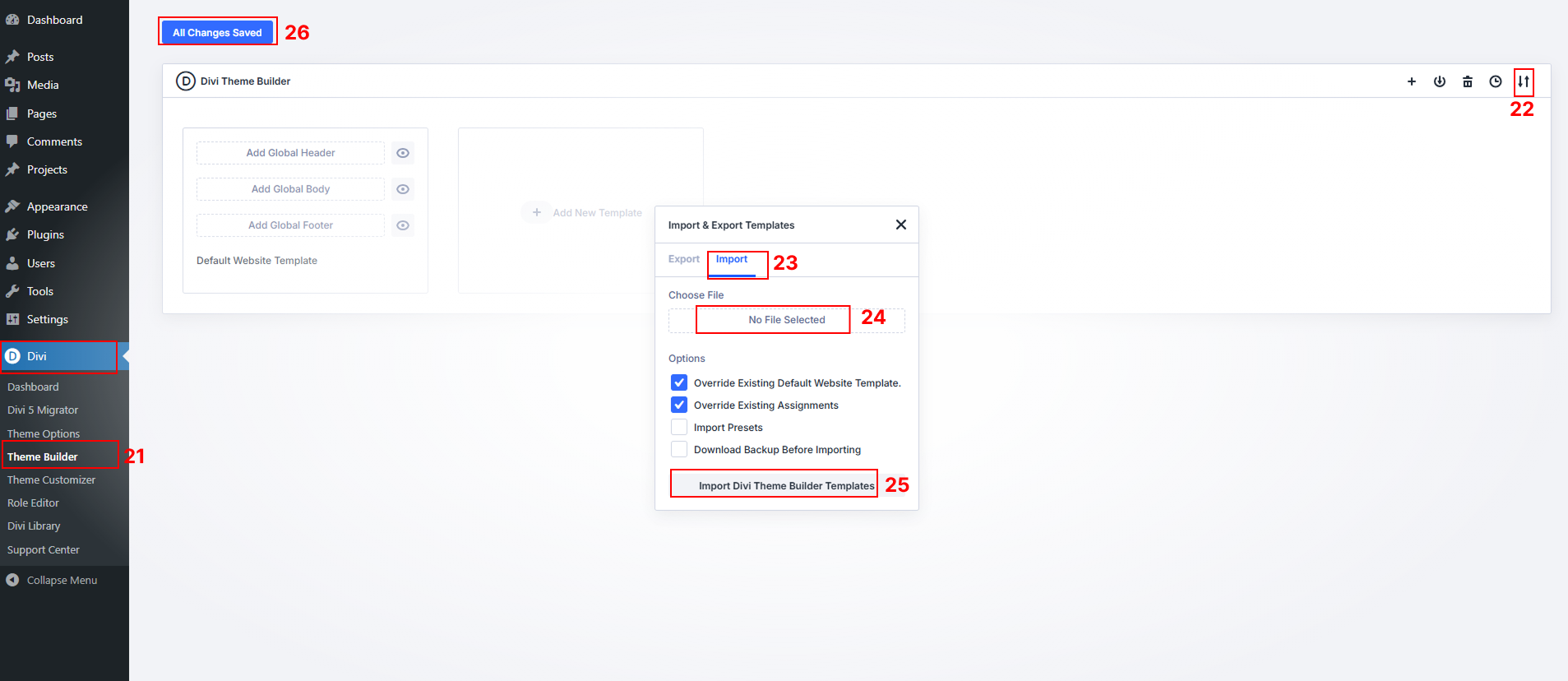
Step 5 – Import Theme Builder Templates
Import Divi-Theme-Builder-Templates (Locate the file in the product zip file: Product Zip File > imports > Divi-Theme-Builder-Templates.json)
–Go to Divi > Theme Builder.
–Click Import/Export.
–Click Import and upload the Divi-Theme-Builder-Templates.json file.
-Click Save Changes when done.